> ## Documentation Index
> Fetch the complete documentation index at: https://docs-staging-chore-management-api-autoupdate.mintlify.site/llms.txt
> Use this file to discover all available pages before exploring further.

> Configure an update policy form using Forms for Actions

# Use Cases: Configure an update policy form using Forms

<Card title="Before you start">
  1. Create a [Machine-to-Machine Application](/docs/get-started/auth0-overview/create-applications/machine-to-machine-apps) with the following scopes enabled:

  * `read:users`
  * `update:users`
  * `create:users`
  * `read:users_app_metadata`
  * `update:users_app_metadata`
  * `create:users_app_metadata`

  2. Add a [Vault connection](/docs/customize/forms/vault) using the M2M application credentials.
</Card>

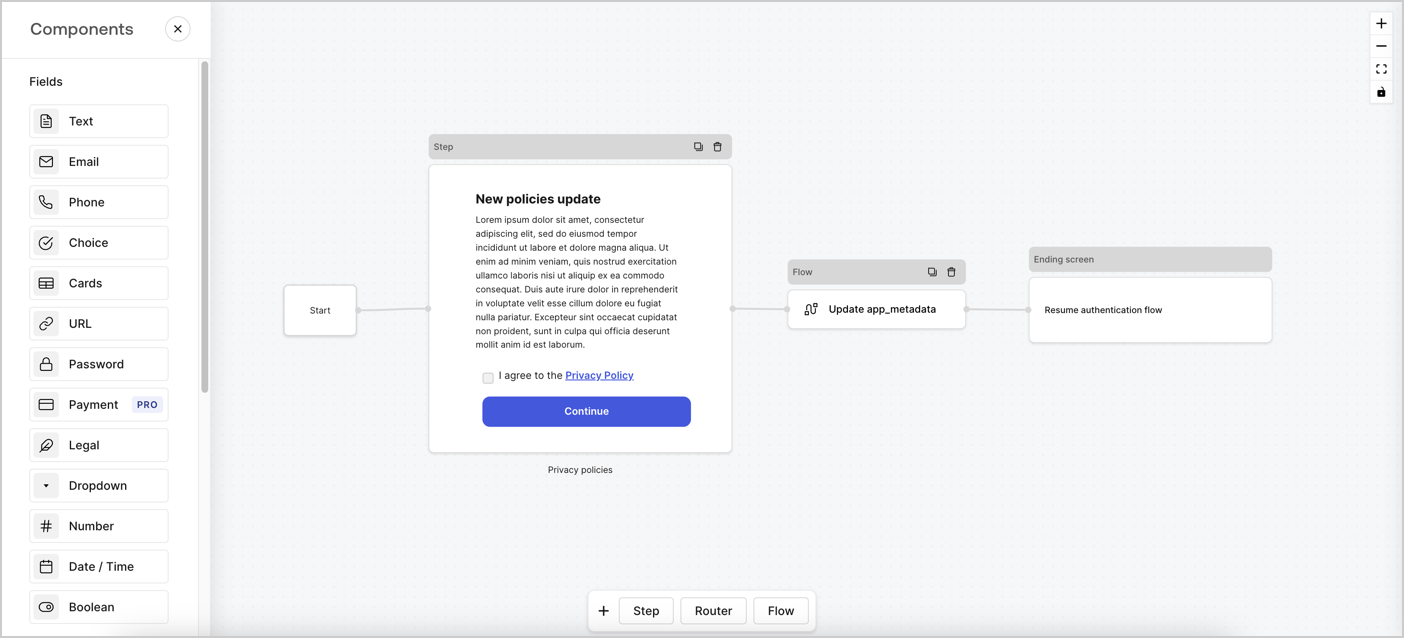
Forms for Actions allows you to create custom privacy policies flows and store the consent under the `app_metadata` object.
<Frame>
  <img src="https://mintcdn.com/docs-staging-chore-management-api-autoupdate/oiDO-PkIrC6oywTQ/docs/images/cdy7uua7fh8z/6i68dMvHDTijfRmSgN1x8Q/ad900e7d4c0fb34645921435472b8684/privavy-policy-form.png?fit=max&auto=format&n=oiDO-PkIrC6oywTQ&q=85&s=b6bc65d1fa67ab23845bef07c4598294" alt="Dashboard > Actions > Forms > Privacy policy use case" data-og-width="1404" width="1404" data-og-height="638" height="638" data-path="docs/images/cdy7uua7fh8z/6i68dMvHDTijfRmSgN1x8Q/ad900e7d4c0fb34645921435472b8684/privavy-policy-form.png" data-optimize="true" data-opv="3" srcset="https://mintcdn.com/docs-staging-chore-management-api-autoupdate/oiDO-PkIrC6oywTQ/docs/images/cdy7uua7fh8z/6i68dMvHDTijfRmSgN1x8Q/ad900e7d4c0fb34645921435472b8684/privavy-policy-form.png?w=280&fit=max&auto=format&n=oiDO-PkIrC6oywTQ&q=85&s=4694df987bd1ac05c3cb6806ed0af039 280w, https://mintcdn.com/docs-staging-chore-management-api-autoupdate/oiDO-PkIrC6oywTQ/docs/images/cdy7uua7fh8z/6i68dMvHDTijfRmSgN1x8Q/ad900e7d4c0fb34645921435472b8684/privavy-policy-form.png?w=560&fit=max&auto=format&n=oiDO-PkIrC6oywTQ&q=85&s=de92bb6c5105359c6a95823ec6c2f88e 560w, https://mintcdn.com/docs-staging-chore-management-api-autoupdate/oiDO-PkIrC6oywTQ/docs/images/cdy7uua7fh8z/6i68dMvHDTijfRmSgN1x8Q/ad900e7d4c0fb34645921435472b8684/privavy-policy-form.png?w=840&fit=max&auto=format&n=oiDO-PkIrC6oywTQ&q=85&s=05bdb298dc57a3f5dbde5579f6654588 840w, https://mintcdn.com/docs-staging-chore-management-api-autoupdate/oiDO-PkIrC6oywTQ/docs/images/cdy7uua7fh8z/6i68dMvHDTijfRmSgN1x8Q/ad900e7d4c0fb34645921435472b8684/privavy-policy-form.png?w=1100&fit=max&auto=format&n=oiDO-PkIrC6oywTQ&q=85&s=50cf010da400eef1aaeb6f687af1e459 1100w, https://mintcdn.com/docs-staging-chore-management-api-autoupdate/oiDO-PkIrC6oywTQ/docs/images/cdy7uua7fh8z/6i68dMvHDTijfRmSgN1x8Q/ad900e7d4c0fb34645921435472b8684/privavy-policy-form.png?w=1650&fit=max&auto=format&n=oiDO-PkIrC6oywTQ&q=85&s=1bedece2be991320d61c7179c1974324 1650w, https://mintcdn.com/docs-staging-chore-management-api-autoupdate/oiDO-PkIrC6oywTQ/docs/images/cdy7uua7fh8z/6i68dMvHDTijfRmSgN1x8Q/ad900e7d4c0fb34645921435472b8684/privavy-policy-form.png?w=2500&fit=max&auto=format&n=oiDO-PkIrC6oywTQ&q=85&s=dec032be1ccc63bb860829f41b14fb03 2500w" />
</Frame>

The sections below outline how you can create an Update Policy form using nodes and flows, along with steps for adding your form to a [Post Login](/docs/customize/actions/explore-triggers/signup-and-login-triggers/login-trigger) Action.

## Create a form from scratch

Follow these steps to create a form to gather information:

1. Open the Form editor by selecting **Auth0 Dashboard > Actions > Forms.**
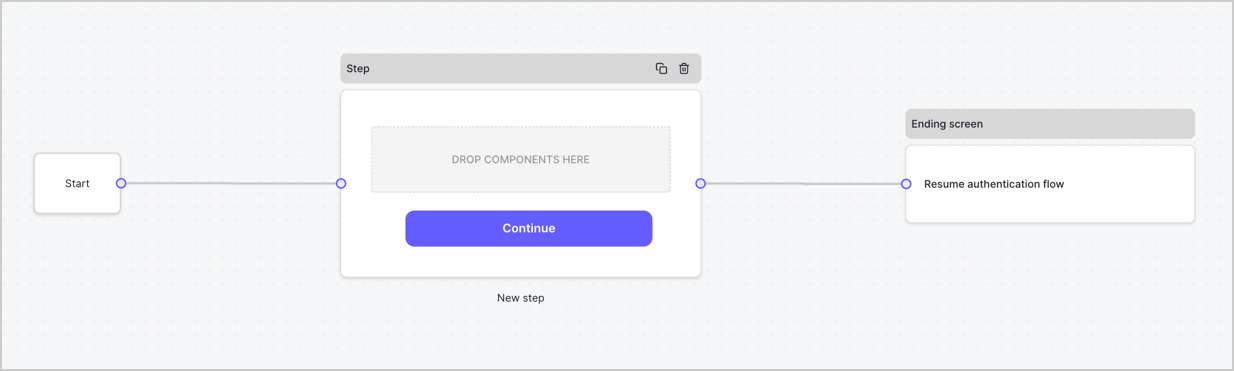
2. Select **Create Form** > **Start from scratch**.

By default, a new form contains a Start node, a Step node, and an Ending screen node.
<Frame>
  <img src="https://mintcdn.com/docs-staging-chore-management-api-autoupdate/5OH5qupGbDGigNkI/docs/images/cdy7uua7fh8z/2TZ9jSjgEcARFpULI6hz4R/a4319a1bd482f2ee5cc23100fdb2f42c/New-form-Forms-for-action-use-case.png?fit=max&auto=format&n=5OH5qupGbDGigNkI&q=85&s=52ee07c6be793b8e3957427b4c06a70d" alt="Dashboard > Forms > Use Cases > Form" data-og-width="1234" width="1234" data-og-height="371" height="371" data-path="docs/images/cdy7uua7fh8z/2TZ9jSjgEcARFpULI6hz4R/a4319a1bd482f2ee5cc23100fdb2f42c/New-form-Forms-for-action-use-case.png" data-optimize="true" data-opv="3" srcset="https://mintcdn.com/docs-staging-chore-management-api-autoupdate/5OH5qupGbDGigNkI/docs/images/cdy7uua7fh8z/2TZ9jSjgEcARFpULI6hz4R/a4319a1bd482f2ee5cc23100fdb2f42c/New-form-Forms-for-action-use-case.png?w=280&fit=max&auto=format&n=5OH5qupGbDGigNkI&q=85&s=c0e17107ac26ba6b92f7201dfbe34849 280w, https://mintcdn.com/docs-staging-chore-management-api-autoupdate/5OH5qupGbDGigNkI/docs/images/cdy7uua7fh8z/2TZ9jSjgEcARFpULI6hz4R/a4319a1bd482f2ee5cc23100fdb2f42c/New-form-Forms-for-action-use-case.png?w=560&fit=max&auto=format&n=5OH5qupGbDGigNkI&q=85&s=1ee8bf336acc45435e8780b5a515ebc5 560w, https://mintcdn.com/docs-staging-chore-management-api-autoupdate/5OH5qupGbDGigNkI/docs/images/cdy7uua7fh8z/2TZ9jSjgEcARFpULI6hz4R/a4319a1bd482f2ee5cc23100fdb2f42c/New-form-Forms-for-action-use-case.png?w=840&fit=max&auto=format&n=5OH5qupGbDGigNkI&q=85&s=abff23856df4920ddb687d97ad3722e6 840w, https://mintcdn.com/docs-staging-chore-management-api-autoupdate/5OH5qupGbDGigNkI/docs/images/cdy7uua7fh8z/2TZ9jSjgEcARFpULI6hz4R/a4319a1bd482f2ee5cc23100fdb2f42c/New-form-Forms-for-action-use-case.png?w=1100&fit=max&auto=format&n=5OH5qupGbDGigNkI&q=85&s=50b4052411d782feb91aab139f756af3 1100w, https://mintcdn.com/docs-staging-chore-management-api-autoupdate/5OH5qupGbDGigNkI/docs/images/cdy7uua7fh8z/2TZ9jSjgEcARFpULI6hz4R/a4319a1bd482f2ee5cc23100fdb2f42c/New-form-Forms-for-action-use-case.png?w=1650&fit=max&auto=format&n=5OH5qupGbDGigNkI&q=85&s=076022785762532eb39e28b1df3013b0 1650w, https://mintcdn.com/docs-staging-chore-management-api-autoupdate/5OH5qupGbDGigNkI/docs/images/cdy7uua7fh8z/2TZ9jSjgEcARFpULI6hz4R/a4319a1bd482f2ee5cc23100fdb2f42c/New-form-Forms-for-action-use-case.png?w=2500&fit=max&auto=format&n=5OH5qupGbDGigNkI&q=85&s=bb75874f6bd35e2bb7c9b62a5f1f3e01 2500w" />
</Frame>

### Configure the Step node

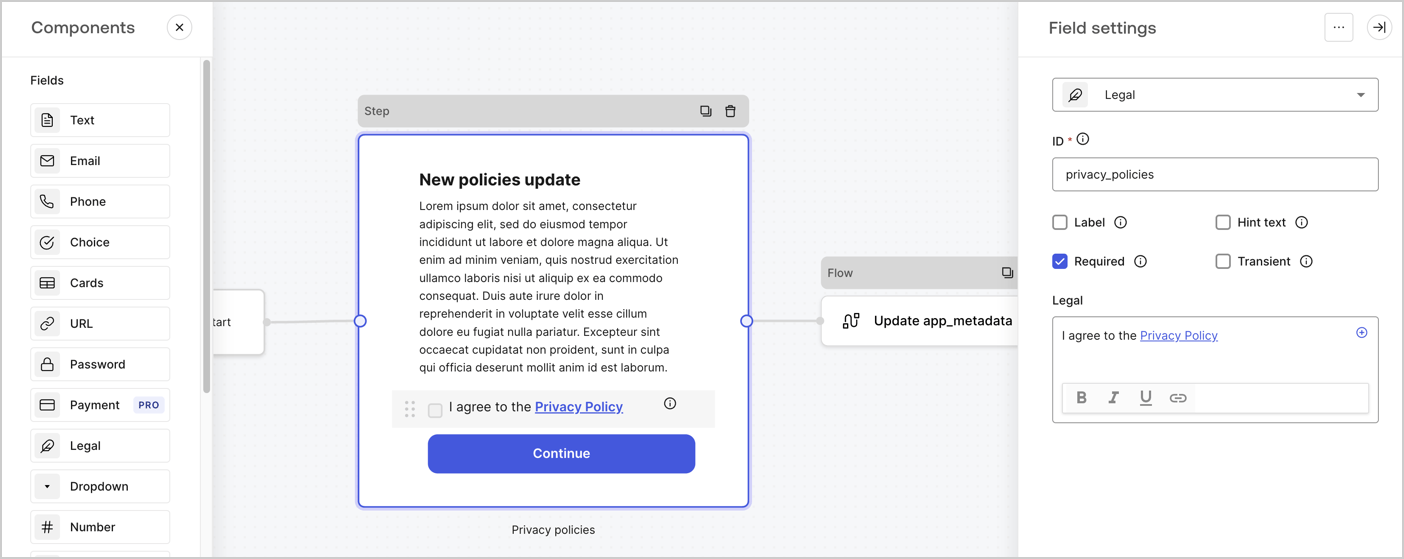
The Step node is the graphical interface visible to users. Add [Fields](/docs/customize/forms/nodes-and-components) to the Step node to collect the new agreement acceptance value by following these steps:

1. Drag a **Rich text** field from the **Components menu** into the **Step** node.

   * **Rich text**: Enter a description of your privacy policies updates.
   * Select **Save**.
2. Drag a **Legal** field into the **Step** node.

   * **ID**: Enter `privacy_policies`.
   * **Required**: Enable the checkbox.
   * **Legal**: Enter `I agree to the Privacy Policy`.
   * Select **Save**.
3. Select **Publish** to save.
<Frame>
  <img src="https://mintcdn.com/docs-staging-chore-management-api-autoupdate/uxaWpNuZEjMCtl4x/docs/images/cdy7uua7fh8z/59zFFjQjAnjogkc2QGIqqJ/0ad66b1b636544122aa4e65968b76c2c/privacy-policy-step-node.png?fit=max&auto=format&n=uxaWpNuZEjMCtl4x&q=85&s=5e8ecec1c5bff6f4d5e550708a47c7a1" alt="Dashboard > Actions > Forms > Use case privacy policy step node" data-og-width="1404" width="1404" data-og-height="559" height="559" data-path="docs/images/cdy7uua7fh8z/59zFFjQjAnjogkc2QGIqqJ/0ad66b1b636544122aa4e65968b76c2c/privacy-policy-step-node.png" data-optimize="true" data-opv="3" srcset="https://mintcdn.com/docs-staging-chore-management-api-autoupdate/uxaWpNuZEjMCtl4x/docs/images/cdy7uua7fh8z/59zFFjQjAnjogkc2QGIqqJ/0ad66b1b636544122aa4e65968b76c2c/privacy-policy-step-node.png?w=280&fit=max&auto=format&n=uxaWpNuZEjMCtl4x&q=85&s=2168e5579c56dae976b03ee15cbe0458 280w, https://mintcdn.com/docs-staging-chore-management-api-autoupdate/uxaWpNuZEjMCtl4x/docs/images/cdy7uua7fh8z/59zFFjQjAnjogkc2QGIqqJ/0ad66b1b636544122aa4e65968b76c2c/privacy-policy-step-node.png?w=560&fit=max&auto=format&n=uxaWpNuZEjMCtl4x&q=85&s=0aa5ee5db178ea0f45a5cf974ba418c8 560w, https://mintcdn.com/docs-staging-chore-management-api-autoupdate/uxaWpNuZEjMCtl4x/docs/images/cdy7uua7fh8z/59zFFjQjAnjogkc2QGIqqJ/0ad66b1b636544122aa4e65968b76c2c/privacy-policy-step-node.png?w=840&fit=max&auto=format&n=uxaWpNuZEjMCtl4x&q=85&s=abbacf98f2bbcb70dc3a39876fb34ba8 840w, https://mintcdn.com/docs-staging-chore-management-api-autoupdate/uxaWpNuZEjMCtl4x/docs/images/cdy7uua7fh8z/59zFFjQjAnjogkc2QGIqqJ/0ad66b1b636544122aa4e65968b76c2c/privacy-policy-step-node.png?w=1100&fit=max&auto=format&n=uxaWpNuZEjMCtl4x&q=85&s=0b49204aaa8e1daed577fced41d9862d 1100w, https://mintcdn.com/docs-staging-chore-management-api-autoupdate/uxaWpNuZEjMCtl4x/docs/images/cdy7uua7fh8z/59zFFjQjAnjogkc2QGIqqJ/0ad66b1b636544122aa4e65968b76c2c/privacy-policy-step-node.png?w=1650&fit=max&auto=format&n=uxaWpNuZEjMCtl4x&q=85&s=53584aead606546989afd7b1de15a355 1650w, https://mintcdn.com/docs-staging-chore-management-api-autoupdate/uxaWpNuZEjMCtl4x/docs/images/cdy7uua7fh8z/59zFFjQjAnjogkc2QGIqqJ/0ad66b1b636544122aa4e65968b76c2c/privacy-policy-step-node.png?w=2500&fit=max&auto=format&n=uxaWpNuZEjMCtl4x&q=85&s=a01c132d1086626ae4646bec04ca6b56 2500w" />
</Frame>

### Configure the Flow node

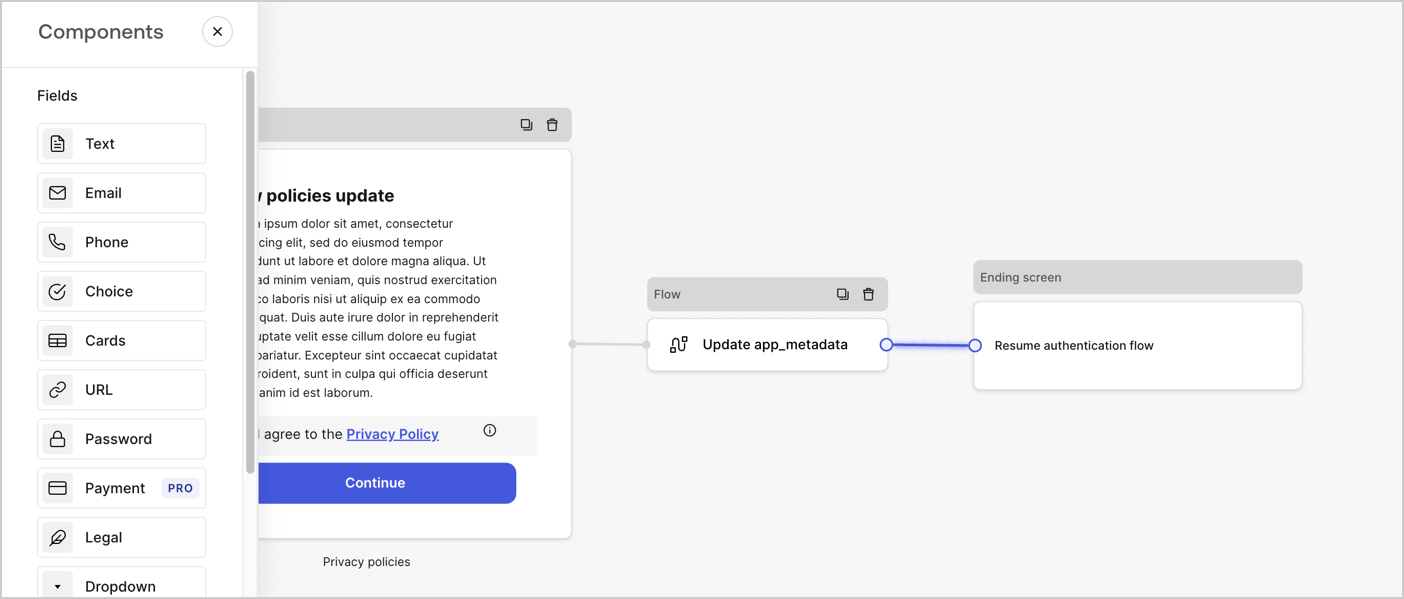
Add a **Flow** node after the **Step** node to update the `app_metadata` and resume the authentication flow by following these steps:

1. Select **Flow** from the bottom of the Form editor.
2. Remove the existing link between the **Step** and **Ending Screen** nodes.
3. Select the new **Flow** > **Click to add a flow** > **Create a new flow.**

   * Enter `Update app_metadata` in the **Name** field.
   * Select **Create**.
   * Select **Save**.
4. Link the **Flow** node to the **Step** and **Ending Screen** nodes as pictured below.
5. Select **Publish** to save.
<Frame>
  <img src="https://mintcdn.com/docs-staging-chore-management-api-autoupdate/oiDO-PkIrC6oywTQ/docs/images/cdy7uua7fh8z/6YIkzm7SrpM9LW76AXuRzh/353c518fe82bbaa440836da1d83596d6/link-policies.png?fit=max&auto=format&n=oiDO-PkIrC6oywTQ&q=85&s=bb3cc3b62ecb0f62c41999c098476098" alt="Dashboard > Actions > Forms > Form" data-og-width="1404" width="1404" data-og-height="599" height="599" data-path="docs/images/cdy7uua7fh8z/6YIkzm7SrpM9LW76AXuRzh/353c518fe82bbaa440836da1d83596d6/link-policies.png" data-optimize="true" data-opv="3" srcset="https://mintcdn.com/docs-staging-chore-management-api-autoupdate/oiDO-PkIrC6oywTQ/docs/images/cdy7uua7fh8z/6YIkzm7SrpM9LW76AXuRzh/353c518fe82bbaa440836da1d83596d6/link-policies.png?w=280&fit=max&auto=format&n=oiDO-PkIrC6oywTQ&q=85&s=e90088312fa8a99e0afa57a4bf5bb615 280w, https://mintcdn.com/docs-staging-chore-management-api-autoupdate/oiDO-PkIrC6oywTQ/docs/images/cdy7uua7fh8z/6YIkzm7SrpM9LW76AXuRzh/353c518fe82bbaa440836da1d83596d6/link-policies.png?w=560&fit=max&auto=format&n=oiDO-PkIrC6oywTQ&q=85&s=bb944838928b127925b623e2d42c14ef 560w, https://mintcdn.com/docs-staging-chore-management-api-autoupdate/oiDO-PkIrC6oywTQ/docs/images/cdy7uua7fh8z/6YIkzm7SrpM9LW76AXuRzh/353c518fe82bbaa440836da1d83596d6/link-policies.png?w=840&fit=max&auto=format&n=oiDO-PkIrC6oywTQ&q=85&s=9c40f1359850102a89c53bd0070e46ce 840w, https://mintcdn.com/docs-staging-chore-management-api-autoupdate/oiDO-PkIrC6oywTQ/docs/images/cdy7uua7fh8z/6YIkzm7SrpM9LW76AXuRzh/353c518fe82bbaa440836da1d83596d6/link-policies.png?w=1100&fit=max&auto=format&n=oiDO-PkIrC6oywTQ&q=85&s=4d1645049cae084f852b5d51a13fc6e8 1100w, https://mintcdn.com/docs-staging-chore-management-api-autoupdate/oiDO-PkIrC6oywTQ/docs/images/cdy7uua7fh8z/6YIkzm7SrpM9LW76AXuRzh/353c518fe82bbaa440836da1d83596d6/link-policies.png?w=1650&fit=max&auto=format&n=oiDO-PkIrC6oywTQ&q=85&s=a1ebcbe6f699479fbc2c86f1d032a842 1650w, https://mintcdn.com/docs-staging-chore-management-api-autoupdate/oiDO-PkIrC6oywTQ/docs/images/cdy7uua7fh8z/6YIkzm7SrpM9LW76AXuRzh/353c518fe82bbaa440836da1d83596d6/link-policies.png?w=2500&fit=max&auto=format&n=oiDO-PkIrC6oywTQ&q=85&s=d8bb61de5f96e675e78ded3b7751d005 2500w" />
</Frame>

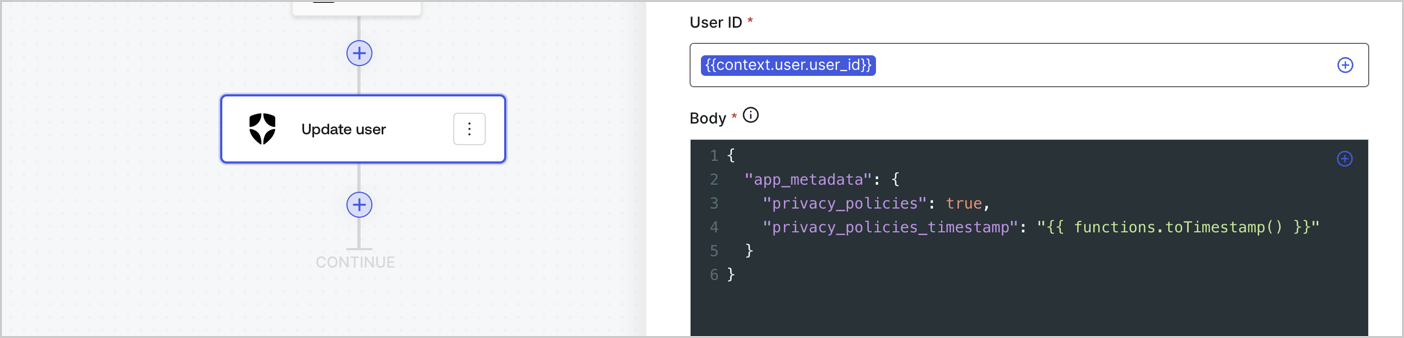
Add an Auth0 Update user action to the flow by following these steps:

1. Select the **Flow** **Update app\_metadata** > **Edit flow** to open the Flow editor in a new tab.
2. Below the StartAction, select the **+** icon to add an **Update user** action. Complete the fields below, then select **Save** to continue.

   * **Connection**: Select from the dropdown the Vault connection to your M2M application.

   * **User ID**: Enter `{{context.user.user_id}}`.

   * **Body**: Copy and paste the following code to update the app\_metadata with the privacy\_policies and privacy\_policies\_timestamp properties.

     ```text lines theme={null}
     {
       "app_metadata": {
         "privacy_policies": true,
         "privacy_policies_timestamp": "{{ functions.toTimestamp() }}"
       }
     }
     ```

   * Select **Save**.
3. Select **Publish** to save.
<Frame>
  <img src="https://mintcdn.com/docs-staging-chore-management-api-autoupdate/QLz_5h5hh6UlDAQ8/docs/images/cdy7uua7fh8z/CvMNIwWrOUwaFW4X3G28p/1fb70ae57a20749d9ffaaba8dc0b7e26/update-user-privacy.png?fit=max&auto=format&n=QLz_5h5hh6UlDAQ8&q=85&s=4cfcdcefe27fc753ca9fab05b6bf0a70" alt="Dashboard > Actions > Forms > User case privacy policy code" data-og-width="1404" width="1404" data-og-height="338" height="338" data-path="docs/images/cdy7uua7fh8z/CvMNIwWrOUwaFW4X3G28p/1fb70ae57a20749d9ffaaba8dc0b7e26/update-user-privacy.png" data-optimize="true" data-opv="3" srcset="https://mintcdn.com/docs-staging-chore-management-api-autoupdate/QLz_5h5hh6UlDAQ8/docs/images/cdy7uua7fh8z/CvMNIwWrOUwaFW4X3G28p/1fb70ae57a20749d9ffaaba8dc0b7e26/update-user-privacy.png?w=280&fit=max&auto=format&n=QLz_5h5hh6UlDAQ8&q=85&s=6e29f3a830cd21dcce3e6db7265dbce6 280w, https://mintcdn.com/docs-staging-chore-management-api-autoupdate/QLz_5h5hh6UlDAQ8/docs/images/cdy7uua7fh8z/CvMNIwWrOUwaFW4X3G28p/1fb70ae57a20749d9ffaaba8dc0b7e26/update-user-privacy.png?w=560&fit=max&auto=format&n=QLz_5h5hh6UlDAQ8&q=85&s=1d67a05388d67e16e00609708b2e16dd 560w, https://mintcdn.com/docs-staging-chore-management-api-autoupdate/QLz_5h5hh6UlDAQ8/docs/images/cdy7uua7fh8z/CvMNIwWrOUwaFW4X3G28p/1fb70ae57a20749d9ffaaba8dc0b7e26/update-user-privacy.png?w=840&fit=max&auto=format&n=QLz_5h5hh6UlDAQ8&q=85&s=843d1a1157ae6f723e8a888ffee4496c 840w, https://mintcdn.com/docs-staging-chore-management-api-autoupdate/QLz_5h5hh6UlDAQ8/docs/images/cdy7uua7fh8z/CvMNIwWrOUwaFW4X3G28p/1fb70ae57a20749d9ffaaba8dc0b7e26/update-user-privacy.png?w=1100&fit=max&auto=format&n=QLz_5h5hh6UlDAQ8&q=85&s=ffc81a11fc01a08165d698f94b8ed061 1100w, https://mintcdn.com/docs-staging-chore-management-api-autoupdate/QLz_5h5hh6UlDAQ8/docs/images/cdy7uua7fh8z/CvMNIwWrOUwaFW4X3G28p/1fb70ae57a20749d9ffaaba8dc0b7e26/update-user-privacy.png?w=1650&fit=max&auto=format&n=QLz_5h5hh6UlDAQ8&q=85&s=06d0ddd33c8eba44e26f1b17783bfb75 1650w, https://mintcdn.com/docs-staging-chore-management-api-autoupdate/QLz_5h5hh6UlDAQ8/docs/images/cdy7uua7fh8z/CvMNIwWrOUwaFW4X3G28p/1fb70ae57a20749d9ffaaba8dc0b7e26/update-user-privacy.png?w=2500&fit=max&auto=format&n=QLz_5h5hh6UlDAQ8&q=85&s=39705a44af3bc6daead42d24b4ee0b6d 2500w" />
</Frame>

<Callout icon="file-lines" color="#0EA5E9" iconType="regular">
  The flow **Update app\_metadata** adds a `privacy_policies true` value to the app`_metadata` object and also generates a timestamp with a [helper function.](/docs/customize/forms/variables)
</Callout>

## Retrieve the form render code

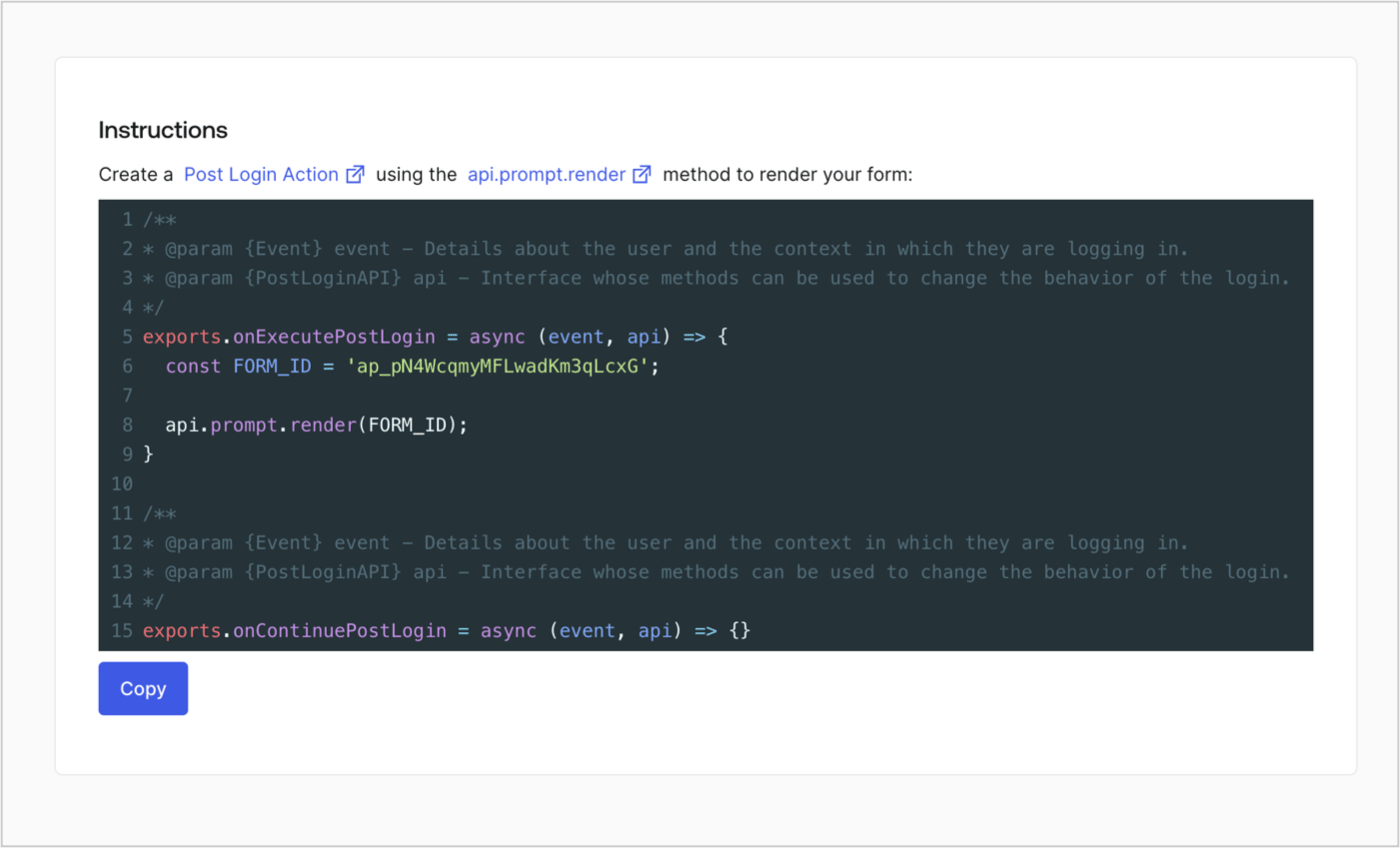
Retrieve your form render code to visually render the form with a custom Post Login Action by following these steps:

* From the Form editor, select **`<> Render`**.
* Select **Copy**.
<Frame>
  <img src="https://mintcdn.com/docs-staging-chore-management-api-autoupdate/oVD85MvA7ZVayXF0/docs/images/cdy7uua7fh8z/2EIUzc539sq9lwoTKbjoJv/496a864c0fc44a782c9cadca119dbfb0/embed.png?fit=max&auto=format&n=oVD85MvA7ZVayXF0&q=85&s=23db17feff5783488b80b783cd37bc1e" alt="Dashboard > Actions > Forms > Form > Embed" data-og-width="1400" width="1400" data-og-height="848" height="848" data-path="docs/images/cdy7uua7fh8z/2EIUzc539sq9lwoTKbjoJv/496a864c0fc44a782c9cadca119dbfb0/embed.png" data-optimize="true" data-opv="3" srcset="https://mintcdn.com/docs-staging-chore-management-api-autoupdate/oVD85MvA7ZVayXF0/docs/images/cdy7uua7fh8z/2EIUzc539sq9lwoTKbjoJv/496a864c0fc44a782c9cadca119dbfb0/embed.png?w=280&fit=max&auto=format&n=oVD85MvA7ZVayXF0&q=85&s=88af01e18dfda65e15c8eb68c011f272 280w, https://mintcdn.com/docs-staging-chore-management-api-autoupdate/oVD85MvA7ZVayXF0/docs/images/cdy7uua7fh8z/2EIUzc539sq9lwoTKbjoJv/496a864c0fc44a782c9cadca119dbfb0/embed.png?w=560&fit=max&auto=format&n=oVD85MvA7ZVayXF0&q=85&s=e8f06dfd4ffc9450f98542b62a8888d9 560w, https://mintcdn.com/docs-staging-chore-management-api-autoupdate/oVD85MvA7ZVayXF0/docs/images/cdy7uua7fh8z/2EIUzc539sq9lwoTKbjoJv/496a864c0fc44a782c9cadca119dbfb0/embed.png?w=840&fit=max&auto=format&n=oVD85MvA7ZVayXF0&q=85&s=14e3d15cd1189eabb74dfbf256ed2a22 840w, https://mintcdn.com/docs-staging-chore-management-api-autoupdate/oVD85MvA7ZVayXF0/docs/images/cdy7uua7fh8z/2EIUzc539sq9lwoTKbjoJv/496a864c0fc44a782c9cadca119dbfb0/embed.png?w=1100&fit=max&auto=format&n=oVD85MvA7ZVayXF0&q=85&s=54814b0bcc88702b3dd22c1c6e7973fa 1100w, https://mintcdn.com/docs-staging-chore-management-api-autoupdate/oVD85MvA7ZVayXF0/docs/images/cdy7uua7fh8z/2EIUzc539sq9lwoTKbjoJv/496a864c0fc44a782c9cadca119dbfb0/embed.png?w=1650&fit=max&auto=format&n=oVD85MvA7ZVayXF0&q=85&s=45e97eff68fb5e1188c8b64d86b91e10 1650w, https://mintcdn.com/docs-staging-chore-management-api-autoupdate/oVD85MvA7ZVayXF0/docs/images/cdy7uua7fh8z/2EIUzc539sq9lwoTKbjoJv/496a864c0fc44a782c9cadca119dbfb0/embed.png?w=2500&fit=max&auto=format&n=oVD85MvA7ZVayXF0&q=85&s=78ba3303d36d196439c571f270cdd8b9 2500w" />
</Frame>

## Create a Post Login Action

Create a post-login Action to render your form by following these steps:

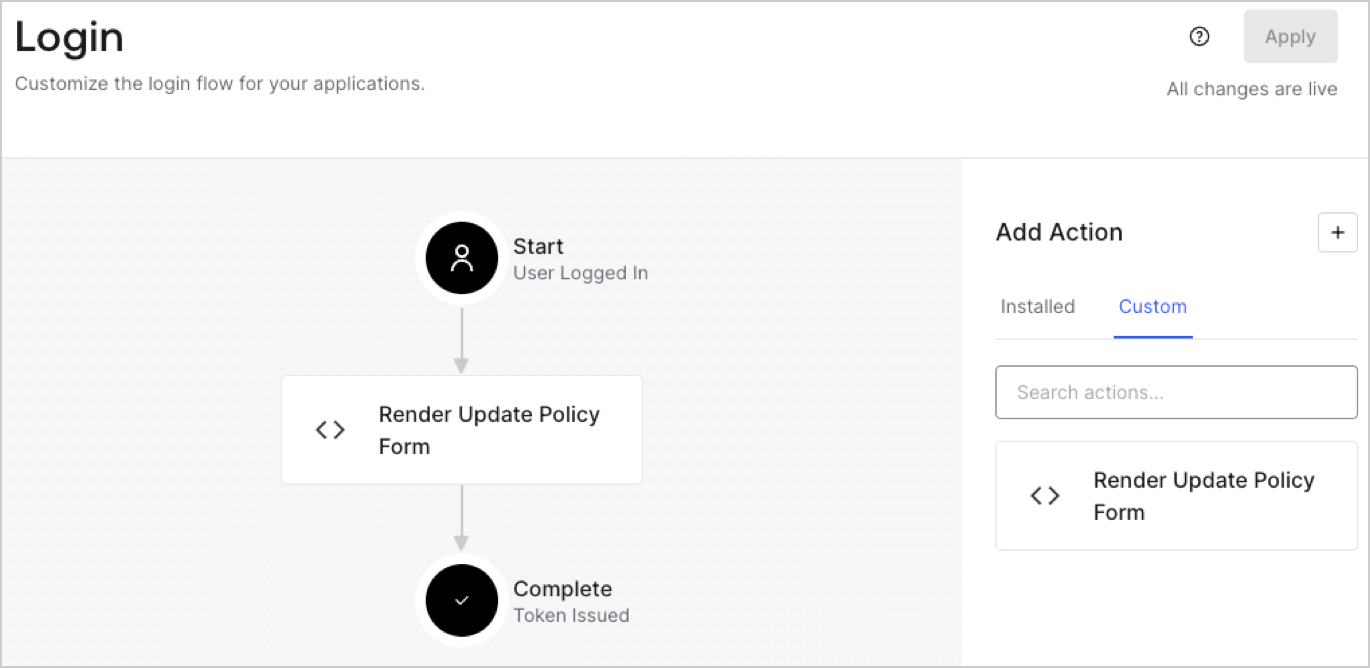
1. Navigate to **Auth0 Dashboard > Actions > Flows > Login.**
2. Select the **+** icon and Select **Build from scratch**:

   * **Name**: Enter `Render Update Policy Form`.
   * **Trigger**: Select `Login / Post Login`.
   * **Runtime**: Select the recommended version.
3. Select **Create**.

To configure the post-login Action:

1. Delete the existing code from the Code editor.
2. Paste the form render code into the Code editor.
3. Edit the code to define the conditional logic that will render the form.

   ```javascript lines theme={null}
   /**
   * @param {Event} event - Details about the user and the context in which they are logging in.
   * @param {PostLoginAPI} api - Interface whose methods can be used to change the behavior of the login.
   */
   exports.onExecutePostLogin = async (event, api) => {
     const FORM_ID = 'REPLACE_WITH_YOUR_FORM_ID';

     if (event.user.app_metadata.privacy_policies !== true) {
       api.prompt.render(FORM_ID);
     }
   }

   exports.onContinuePostLogin = async (event, api) => { }
   ```

   <Callout icon="file-lines" color="#0EA5E9" iconType="regular">
     The example code above will render the form when a user is missing the app metadata `privacy_policies` property.
   </Callout>
4. Select **Deploy.**
5. Drag and Drop the **Render Update Policy Form** Action to the **Login** flow.
   <Frame>
     <img src="https://mintcdn.com/docs-staging-chore-management-api-autoupdate/Hlj5AELI6oQmnetW/docs/images/cdy7uua7fh8z/5TOwDgevZsBqd7yZynUYWU/41ca909dc3007aed4f40ff794a05efa5/postlogin.png?fit=max&auto=format&n=Hlj5AELI6oQmnetW&q=85&s=d98e7703013038cd0a086042a85867dd" alt="Dashboard > Forms > Use Case > Render update policy form login action" data-og-width="1370" width="1370" data-og-height="668" height="668" data-path="docs/images/cdy7uua7fh8z/5TOwDgevZsBqd7yZynUYWU/41ca909dc3007aed4f40ff794a05efa5/postlogin.png" data-optimize="true" data-opv="3" srcset="https://mintcdn.com/docs-staging-chore-management-api-autoupdate/Hlj5AELI6oQmnetW/docs/images/cdy7uua7fh8z/5TOwDgevZsBqd7yZynUYWU/41ca909dc3007aed4f40ff794a05efa5/postlogin.png?w=280&fit=max&auto=format&n=Hlj5AELI6oQmnetW&q=85&s=4da7e755072fe765497f9538b11604f7 280w, https://mintcdn.com/docs-staging-chore-management-api-autoupdate/Hlj5AELI6oQmnetW/docs/images/cdy7uua7fh8z/5TOwDgevZsBqd7yZynUYWU/41ca909dc3007aed4f40ff794a05efa5/postlogin.png?w=560&fit=max&auto=format&n=Hlj5AELI6oQmnetW&q=85&s=0a529271c811943eebe742455fc96ae7 560w, https://mintcdn.com/docs-staging-chore-management-api-autoupdate/Hlj5AELI6oQmnetW/docs/images/cdy7uua7fh8z/5TOwDgevZsBqd7yZynUYWU/41ca909dc3007aed4f40ff794a05efa5/postlogin.png?w=840&fit=max&auto=format&n=Hlj5AELI6oQmnetW&q=85&s=d84889d9e8a7d700e1a62425ce8552e3 840w, https://mintcdn.com/docs-staging-chore-management-api-autoupdate/Hlj5AELI6oQmnetW/docs/images/cdy7uua7fh8z/5TOwDgevZsBqd7yZynUYWU/41ca909dc3007aed4f40ff794a05efa5/postlogin.png?w=1100&fit=max&auto=format&n=Hlj5AELI6oQmnetW&q=85&s=1643be8d2ef793aa84d1fde773e7d516 1100w, https://mintcdn.com/docs-staging-chore-management-api-autoupdate/Hlj5AELI6oQmnetW/docs/images/cdy7uua7fh8z/5TOwDgevZsBqd7yZynUYWU/41ca909dc3007aed4f40ff794a05efa5/postlogin.png?w=1650&fit=max&auto=format&n=Hlj5AELI6oQmnetW&q=85&s=9a1fb0919976ea3d6a51e2d6eccf052f 1650w, https://mintcdn.com/docs-staging-chore-management-api-autoupdate/Hlj5AELI6oQmnetW/docs/images/cdy7uua7fh8z/5TOwDgevZsBqd7yZynUYWU/41ca909dc3007aed4f40ff794a05efa5/postlogin.png?w=2500&fit=max&auto=format&n=Hlj5AELI6oQmnetW&q=85&s=30818d47992a5d5f1f08bebe529b74a4 2500w" />
   </Frame>
6. Select **Apply.**

### Test implementation

Test the implementation by following these steps:

1. Log in with an existing user whose app`_metadata` attribute `privacy_policies` does not have a value.
2. The post-login Action in the Login flow will render the form and prompt for acceptance.
3. Select **Auth0 Dashboard > User Management > Users,** locate the user and verify that the `app_metadata` attribute `privacy_policies` contains a `true` value and a timestamp.
